Use
Set up and edit
You set the style, two colors and a field for each zone. Where you do this depends on your watch.
See Devices and testing to find the method for your watch.
On the watch (newer devices)
fēnix 8, fēnix 9 Pro and enduro 3 use the Garmin watch face editor.
- On the watch face, hold MENU.
- Select Watch Face, then select Customize on Topo Vector.
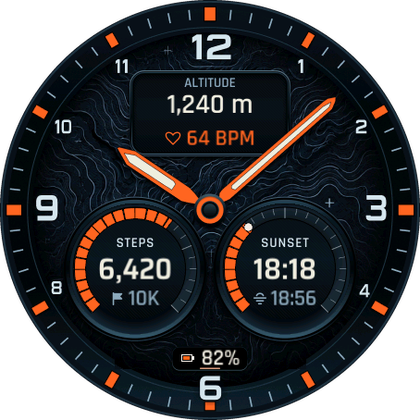
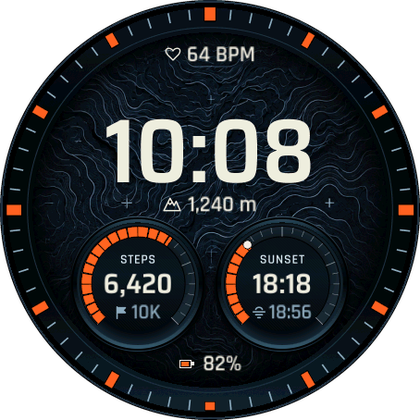
- Select Style: Analogue or Digital.
- Select Accent, then Data Color.
- Select a zone. The editor outlines it: a rectangle for a row, a circle for a dial.
- Select a field for that zone, or None.
- Do steps 5 and 6 for each zone, then save.
Sunrise in the editor
The editor has no Sun Cycle type. Choose Sunrise instead:
- In a row (Z1, Z2 or Z5), Sunrise shows Sunrise.
- In a dial (Z3 or Z4), Sunrise shows Sun Cycle.
Sunset stays Sunset in every zone.
In the Connect IQ app (older devices)
Venu 3, Forerunner 965, Forerunner 955, fēnix 7, fēnix 7S and fēnix 9 Pro Solar use the settings in the phone app.
- On your phone, open the Garmin Connect IQ app.
- Select your watch, then Topo Vector, then Settings.
- Set Style, Accent Color and Data Color.
- Set a field for each of the five zones, or None.
- Save. The phone sends the change to the watch.
These watches also have a Topo Vector menu on the watch. It lists every field for each zone. A change saves when you select it. Back closes the menu without a change.
Start
A new install shows only the time: all five zones are set to None. Add fields one zone at a time.
Not sure where to start? Try Heart Rate in Z1, Altitude in Z2, Steps in Z3, Sunrise (Sun Cycle) in Z4 and Battery in Z5.